MRO-TRACKER

    Introduction
    This guide will help your company successfully use the enhanced MRO-Tracker 5.0 web application with your MRO customers and suppliers.

    It explains how to support the EDI process and system requirements. MRO-Tracker 5.0 offers powerful new features driven by continuous development and user feedback. Highlights include:

    • Automated repair order notifications & data exchange
    • Full visibility of repair cycle progress
    • Document upload & centralized storage (e.g. SFRs, certificates)
    • Customizable repair order status reports with email distribution
    • RFQ/Quote exchange & tracking
    • AWB and shipment tracking
    • Full format & data transfer compatibility
    • One-time setup usable across all customers

    We invite you to explore the new interface and capabilities. MRO-Tracker is designed to streamline your repair order workflows, reduce manual effort, and cut operational costs. Need help? Contact our experts or request a live demo at support@b2b-aero.com.

    REPAIR ORDER SEARCH

    Search
    Repair Order Details
    Settings

    ONLINE DATA ENTRY

    Acknowledgement
    Quotation
    Partial Quotes
    Repair Status
    On Hold Start/Stop
    Return Shipment
    Upload Document
    Messages

    REPORTING

    Access a Report
    Filter a Report
    Create a New Report
    Run / Save / Download / Edit a Report
    Schedule a Report
    After you successfully created a report you can schedule it for an automated e-mail delivery. Please note that you have to SAVE your report before you can schedule it! Run your preferred report than click on “EDIT” and navigate to “Schedule”. Here you can enter the criteria for your report distribution by e-mail (page scrolled up). Please confirm the checkbox “Activate Schedule” and enter a schedule interval, schedule time and contacts to be copied.

    To automatically forward the report to an external contact enter his/her e-mail address in “E-Mail To” (page scrolled down). Also add an “E-Mail Subject” & “E-Mail Text” to inform about the content of the report. As a last option you can select the file format that will be attached. Please confirm your entries by clicking on “SAVE” at the top. Find your scheduled reports in the reports panel where a clock icon indicates that this report is now scheduled for automated e-mail delivery (see figure Chapter II.3.8). All scheduled reports will be automatically updated with the most recent information from the database. Of course you can modify your schedule criteria at any time.
    Share a Report
    The MRO-Tracker allows to share a report once created. In this way your colleagues will be able to find the report in their own account and use it as a blue print or template to set up (their) reports. In order to share a report click on “EDIT” and navigate to “Share”. Here you have the option to set the permissions Allow Extentions and/or Allow Own Copy to the associated report. If you uncheck both boxes the shared report can only be seen and run from an other user. If you choose the option “Allow Extentions” every user can modify the report, which will affect all extended reports. In case you want to preserve the original report only click on “Allow Own Copy”. Consequently the shared report can be copied and modified, which will not take affect on the original report.

    Please select the report recipients individually by clicking on the checkboxes next to the user name or share the report with all users of your company at the bottom. Finally confirm your entries by clicking on “SAVE”.

    You can find shared reports on the repair order search page, the advanced search options and the reports panel (see Chapter II.1.1 and Chapter II.3.2).
    Report Options
    Accessing the “EDIT” functionality of a certain report you can change the report name & category under “Options”. By entering a different category name you will create a new category on the repair order search page, the advanced search options and inside the reports panel. This feature allows you to organize your reports and to clearly categorize them.

    Report Context Menu
    Whitin the expanded reports panel you have the ability to right-click on a certain report and open the context menu. This will grant you access to the functionality: “Run”, “Download”, “Edit”, “Rename”, “Set Category”, “Copy” and “Delete” right away. The “Set Category” button will allow you to rename the category and by this create a new category on the repair order search page as well as the advanced search options & within the reports panel.

    APPENDICES

    Support Contacts
    b2b-aero.com GmbH
    Schnellmark 30
    23556 Luebeck

    Mail: support@b2b-aero.com
    Phone: +49-40-999 9999-0
    EDI implementation options & upgrade
    Setting up the MRO-Tracker system („connection with ALL your business partners) is a ONE-TIME-EFFORT regardless of your IT knowledge, infrastructure or other EDI interfaces in place.
    With a one-time-implementation effort we can connect any ERP backend system with another and we are supporting data exchange projects between EDI or Non-EDI trading partners.
    Below you find our implementation options available:

    MESSAGE FORMATS:
    • SPEC 2000/SITA
    • XML
    • XLSX
    • CSV
    • JSON
    • OLE DB
    •...


    TRANSFER PROTOCOLS:
    • HTTPS
    • SMTP
    • SFTP (FTPS)
    • SOAP
    • WEBSERVICES
    • HTTP REST
    • SITA
    •...

    INTEGRATION OPTIONS:
    • online data entry (manual input)
    • customized file transfer
    • automated FULL EDI
    Your preferred EDI option can be upgraded at any time in the future !

    Please don‘t hesitate to contact the b2b-aero.com support team or key contact to discuss an upgrade in your existing EDI connection to our MRO-Tracker system. We‘ll be glad to help streamline your MRO EDI processes with the fitting EDI solution for your requirements.
    Capability listing
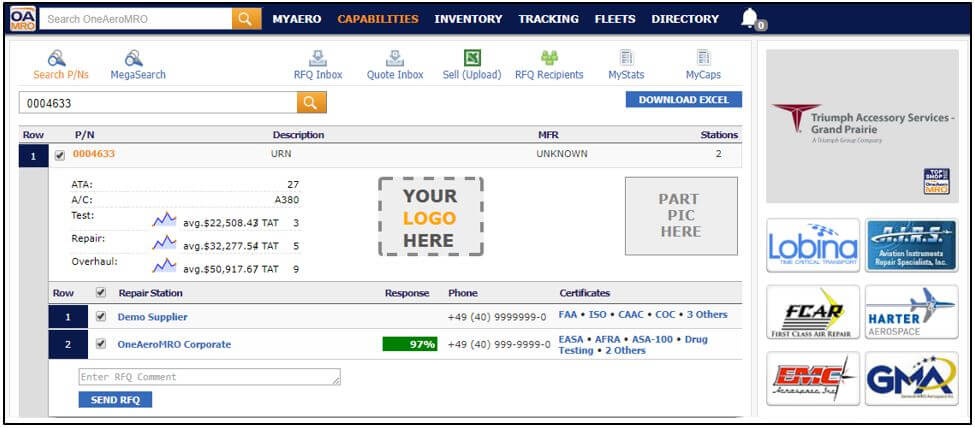
    b2b-aero.com offers every vendor to take benefit of our capability listing tool – CAPABILITIES. Launched in July 2016 it provides an intuitive design and a fast self-taught upload process. The capability database includes accurate repair data such as part number, description, ATA Chapter, aircraft applicability and TAT. All companies that are using CAPABILITIES for sourcing purposes will now be able to search completely free of charge! This new policy aims at promoting our customers’ capabilities to a bigger prospect database, more than 35,000 aviation professionals from the b2b-aero.com network.
    Are you interested in listing your capabilities on b2b-aero.com - Just send us an e-mail and we take care of the rest.